



Render Bender
Exclusive full version for every subscriber...
Converter
This is the fourth program in the suite and it enables you to convert Render Bender, ProArtisan and Illusionist files into sprite files. The new Render Bender picture files are filetype &DE2, which is the same as ProArtisan and Illusionist. The ProArtisan files are an old format of &DE2 but they are still understood.
You can also convert animation files back into the individual screens, either as sprites or as compressed Picture files.
To run Converter double click on the [Converter icon. This loads the Converter icon onto the icon bar.
Note; Converter uses shared resources with Render Bender and so Render Bender must have been seen by the system in order to run Converter. If Render Bender hasn't been seen Converter reports an error and asks where Render Bender is. You do not have to run Render Bender - just catalogue a disc or directory with it on.
The icon bar menu
You access the icon bar menu by pressing MENU on the mouse with the pointer over the icon. This displays the icon bar menu:
- Info - Moving over the arrow displays information regarding the program version number and the author.
- Destination - Normally when you convert a file you get the usual RISC OS save window which you can drag to the location that you want the file to be saved to. But when converting a large number of files or an animation this can get very tedious. By setting a destination path you tell the program where to put the converted files.
Setting the destination can be done either by clicking on the Destination entry in the menu and typing the path name into the window which pops up or by dragging the destination directory onto the Converter icon on the icon bar. In both cases you get a window titled Destination for converted files. This shows the path that will be used for saving files.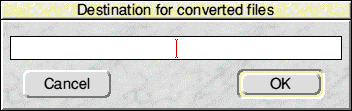
To 'unset' the destination when it is already set, select the Destination option in the icon bar menu then click on Cancel in the Destination window.
- Quit - This quits the program, prompting if a file has not been saved.
Using Converter
To convert files you just drag them onto the Converter icon. The file is converted and a Sprite save window opens up. You can then rename the sprite and drag the file to a directory display.
If you have set a Destination directory you can select and drag more than one file into the converter. In this case the files are converted and saved to the new directory automatically. Warning: If the destination directory is the same as the source directory the original files are overwritten as the same name is used.
De-compressing an animation file
If you want to decompress an animation file (by decompressing an animation you get all the original frames back!) there are some restriction:
- The first frame of the animation must be in the same directory as the animation file.
- The Destination directory must be set.
To decompress the screens simply drag the animation file onto the Converter icon - the program does the rest.
When decompressing an animation file you can choose if you want to create Sprite files or Picture files. A dialogue box pops up to prompt your choice.
!Old_New
This is another application supplied on the disc. Its purpose is to convert old Render Bender files (&U58), ProArtisan files (&DE2) and Sprite files into the new compression format which also has the filetype &DE2. It is preferable to use this new format of file when using Animator.
To run the program double click on the !Old-New icon. A window pops up on screen with the message Drop file here. Select the files that you wish to convert and drop them onto the window. The program converts them and saves them back to the disc using the same name.
Note: In some rare cases the new files may be larger than the old files and a disc full error will be given. You should always work on a copy of your files for this reason.
!New_Old
This application is the reverse of the above and converts new format files into the original ProArtisan &DE2 format. Only the old format files will work with the current ProArtisan and this utility enables you to take any Mode 15 new format file directly into ProArtisan.
It will not allow you to take screens other than Mode 15 into ProArtisan as there will either be too much information or not enough.
Note: In some rare cases the new files may be larger than the old files and a Disc full error will be given. You should always work on a copy of your files for this reason.
RISCWorld