


Illusionist
Another RISCWorld exclusive...
Misc menu
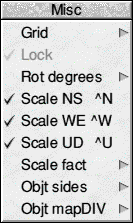
The Misc or Miscellaneous menu contains several items that are not really related to other menus.
Grid
Click on this item to place a grid on screen. A sub menu enables you to alter the size of the grid by entering a different value. When selected a tick appears next to the item.
Lock
When selected a tick appears next to the item in the menu. This menu is greyed out unless the Grid option above is selected, lock is on by default but it can be disabled by clicking on the menu item.
Rot degrees
This stands for degrees of rotation. A writable icon lets you enter the number of degrees to be used for each step when rotating using the three rotation icons in the Toolbox.
Scale NS (Ctrl N)
This item and the two below are normally ticked so that when you use the Scale icon in the Toolbox the selected points are scaled in all directions. If you de- select this option then any scaling leaves the North/South points in their original position. This is useful for creating stretched objects.
Scale WE (Ctrl W)
This item and the two associated ones are normally ticked so that when you use the Scale icon in the Toolbox the selected points are scaled in all directions. If you de-select this option then any scaling leaves the West/East points in their original position. This is useful for creating stretched objects.
Scale UD (Ctrl U)
This item and the two associated ones are normally ticked so that when you use the Scale icon in the Toolbox the selected points are scaled in all directions. If you de-select this option then any scaling leaves the Up/Down points in their original position. This is useful for creating stretched objects.
Scale factor
This item has a writable icon into which you can enter a scale value. This value is the size that an object is scaled to when using the Scale option in the Toolbox. The default is 1.25 but if you changed it to 2 and scaled an object then the object would be twice its original size.
Object sides
This item enables you to specify how many sides an object has. The only objects not affected by this are Cube and Pyramid. The default is 10 but for smoother objects you can increase this value. Note that larger values slow down the re- drawing of the vectors.
Object Map Divisions
This item also has a writable icon and it enables you to decide how many copies of a map are placed on rotated objects such as spheres, tubes, sweeps etc. A setting of two means four picture maps are mapped - two vertical and two horizontal. This setting only takes effect on new objects added, it cannot be applied to an object already in a scene.
RISCWorld