


Illusionist
Another RISCWorld exclusive...
Render menu
This menu controls the creation of the picture in all its various forms.
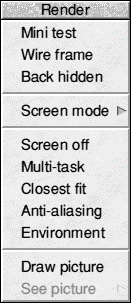
Mini test
Click on this item to see a small rendering of the picture. This enables you to check out colours, environment etc before committing to rendering a full screen.
Wire frame
This item enables you to generate a full screen wire frame image of the scene so that you can check positional information.
Back hidden
When this item is ticked the back surfaces are hidden in the Preview pane and the Wire frame rendering.
Screen mode
This item leads to a sub menu which lets you choose which mode that you would like your picture to be rendered in. Three common modes are provided but you can enter your own mode underneath these. The program checks the mode entered and if it does not recognise it or it is not a 256 colour mode then it reverts back to the last valid mode. Mode 13 is the default mode. When using the PCATS Enhancer you must choose the enhanced modes listed in the back of the Enhancer manual eg 103,115-118.
The final item on this sub-menu, Cut memory, clears any picture in memory and returns the memory back to the system. This is useful if you are using modes that use a lot of memory and you want to load another application or check a picture map.
Screen off
This option turns off the screen whilst rendering a picture. This makes it faster to render the picture as the program can grab all processor time instead of the processor having to update the screen. Whilst a picture is being rendered with the screen off you can press any mouse button to see what progress has been made. In addition the Num Lock light flashes to indicate that the program is still processing. The screen is turned back on when rendering is complete.
To end rendering in this mode press all three mouse buttons together.
Multi-task
To select this option click on it and a tick appears in the menu. When selected the rendering of a picture is done in a window in true multi tasking mode. When the mouse pointer is over the window the hourglass indicates the amount of the picture completed. To stop rendering in this mode click on all three mouse buttons together when the cursor is over the window.
You can close the rendering window using the close icon. Rendering continues and you can bring the window up again by clicking on the Illusionist icon on the icon bar.
Closest fit
To select this option click on it and a tick appears in the menu. When selected the program uses a better weighted, closest fit algorithm for colour matching which produces much better quality pictures. This mode also runs more slowly than with the option disabled.
Anti-aliasing
To select this option click on it and a tick appears in the menu. This technique removes most of the jaggedness in a picture by calculating four intensities per pixel. This takes four times longer to render the image but the results can be very pleasing.
Note that when saving a 24 bit Clear file of 640 * 512 resolution with anti- aliasing on then what is actually saved is a 1280 * 1024 24 bit file. These files are rather large but they can be uploaded onto other systems capable of displaying the full image.
Environment
To select this option click on it and a tick appears in the menu. When ticked the world environment, or background, is also rendered. If it is off then just the objects are drawn in isolation.
Draw picture
Click on this to render the image in full screen size. Whether you can see the rendering or not is dependant upon the settings of the Screen off and Multi-task options described earlier.
See picture
This option has a sub menu from which you can choose to see the rendered picture in either full screen mode or in a window. Full screen changes to the mode selected for rendering whereas Window stays in the current mode.
The heading of the menu shows the amount of time taken to render the image.
RISCWorld